5 iPhone Settings to Change Right After Setup
Your new iPhone works out of the box, but five default settings are quietly costing you battery, privacy and storage. Change these first.
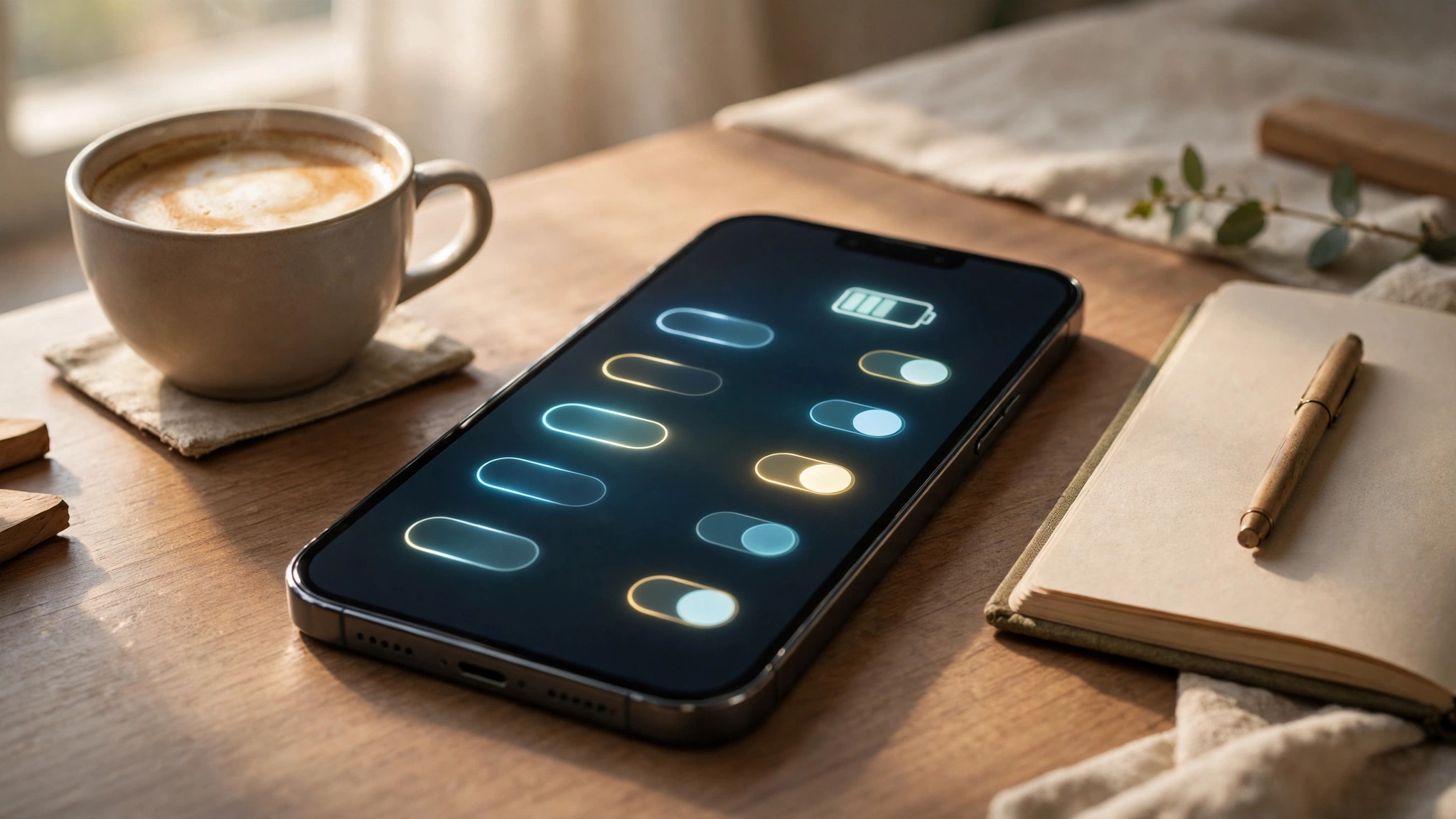
A new iPhone is set up for the average person, and you are probably not average in the ways that matter: how long you keep a phone, how much you value privacy, how many photos you take. The defaults are not bad, but five of them are worth changing on day one, while you are still in the settings app anyway. Each takes under a minute.
First, protect the battery you will rely on for years. Open Settings, Battery, Charging and turn on Optimised Charging; if your model offers a charge limit and you plan to keep the phone for three years or more, the 80 or 90 percent limit noticeably slows battery ageing. While you are there, add the battery percentage to the status bar from Settings, Battery, so you stop guessing. Batteries wear out either way, but these two switches decide how fast.
Best deal check
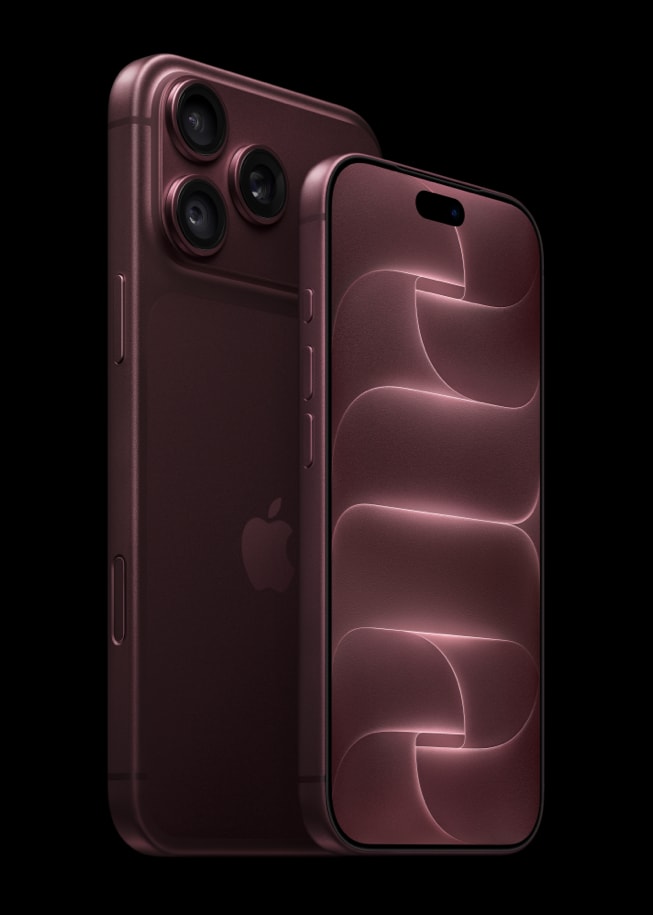
Get the best deal on iPhone 17
Live store prices and real discounts, checked against the official Apple Store price. Tap a store to see the current deal.
Second, tighten tracking. In Settings, Privacy and Security, Tracking, turn off the option that lets apps ask to track you, which quietly refuses most of them at once. In the same Privacy section, open Location Services and set apps that only need a rough area, like weather and news, to approximate location instead of precise. You lose nothing you will notice, and your movements stop being a product.
Third, set the camera up before your first trip, not during it. In Settings, Camera, turn on the Grid and the Level, which fix crooked horizons forever. Under Formats, High Efficiency keeps files small; just know that HEIC photos sometimes need converting before a Windows PC or a web form will accept them, which is a ten second job with a converter. Turn on Preserve Settings too, so the camera reopens in the mode you last used instead of resetting every time.
Fourth, make typing feel right. In Settings, General, Keyboard, enable the keyboard haptics and sound if you like feedback, and turn on slide to type, which is dramatically faster once your thumb learns it. If you write in more than one language, add those keyboards now rather than mid conversation. Small things, but you will feel them a hundred times a day.
Fifth, switch on the safety net while nothing is wrong. Confirm Find My is on in your account settings, turn on automatic iOS updates in Settings, General, Software Update, and fill in your Medical ID in the Health app, which responders can read from the lock screen. On supported models, Stolen Device Protection in the Face ID and Passcode settings adds a delay before account changes when the phone is away from familiar places. These are boring settings right up until the day they are the only ones that matter.
That is the whole list: battery, tracking, camera, keyboard, safety. Five minutes of setup buys you a phone that lasts longer, shares less and works the way you actually use it. Everything else in Settings can wait until you have an opinion about it.
iPhone 17
Compare live prices before you buy.