How to Convert HEIC to JPG on iPhone, Mac and Online
HEIC photos from your iPhone will not open everywhere. Here are the fastest ways to convert them, including our free browser tool.
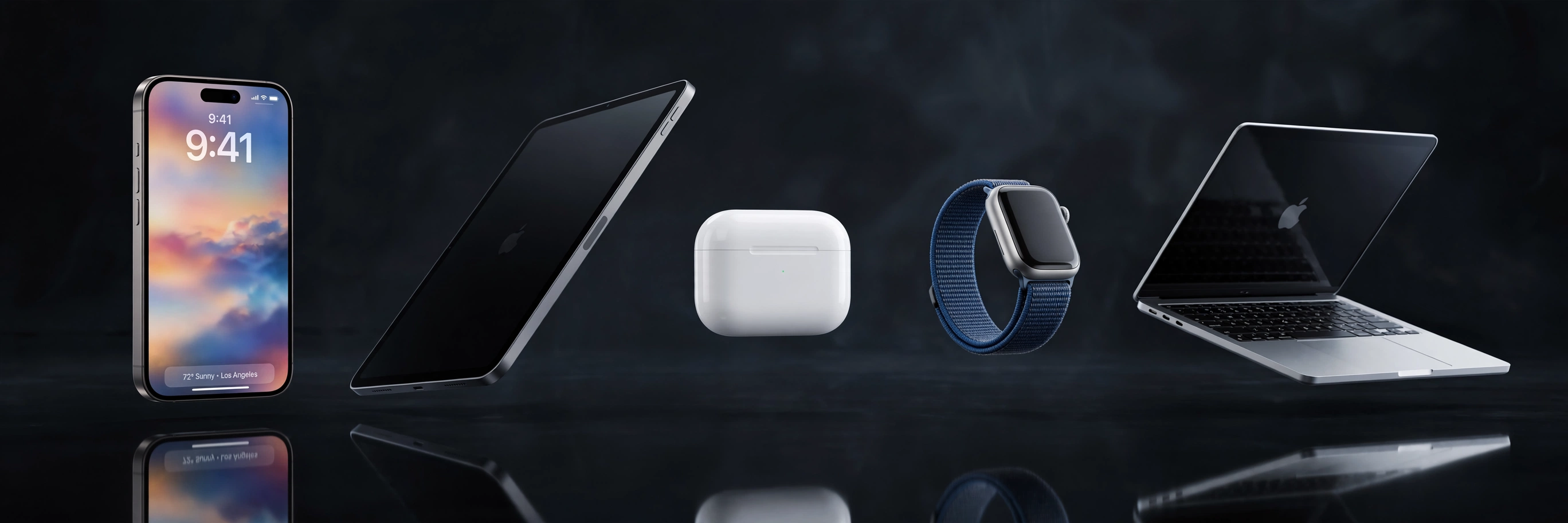
Every photo your iPhone takes is saved as HEIC by default. It saves space, but Windows PCs, older software and many websites still want JPG. The good news: converting takes seconds.
The fastest option is our free HEIC to JPG converter on this site. It runs entirely in your browser, so your photos never leave your device, there is no upload limit dance, and no watermark.
Best deal check
Today's best Apple deals
Live store prices and real discounts, checked against the official Apple Store price. Tap a store to see the current deal.
On a Mac, open the photo in Preview, choose File, Export, and pick JPEG. On the iPhone itself, open Settings, Camera, Formats, and switch to Most Compatible if you want JPG from the start, at the cost of larger files. For one-off shares, the Files app can also convert: long press the photo, Quick Actions, Convert Image.
Best deal check
Best deals on Convert HEIC to JPG on iPhone, Mac and Online
Live store prices and real discounts, checked against the official Apple Store price. Tap a store to see the current deal.